
Zen
Zen is a free, open-source notes app you host yourself. It runs as a single Go binary or a Docker container, keeps notes as Markdown inside a SQLite database, and organises them with tags instead of folders. It adds fast full-text search, version history, templates and an API, while using very little memory.
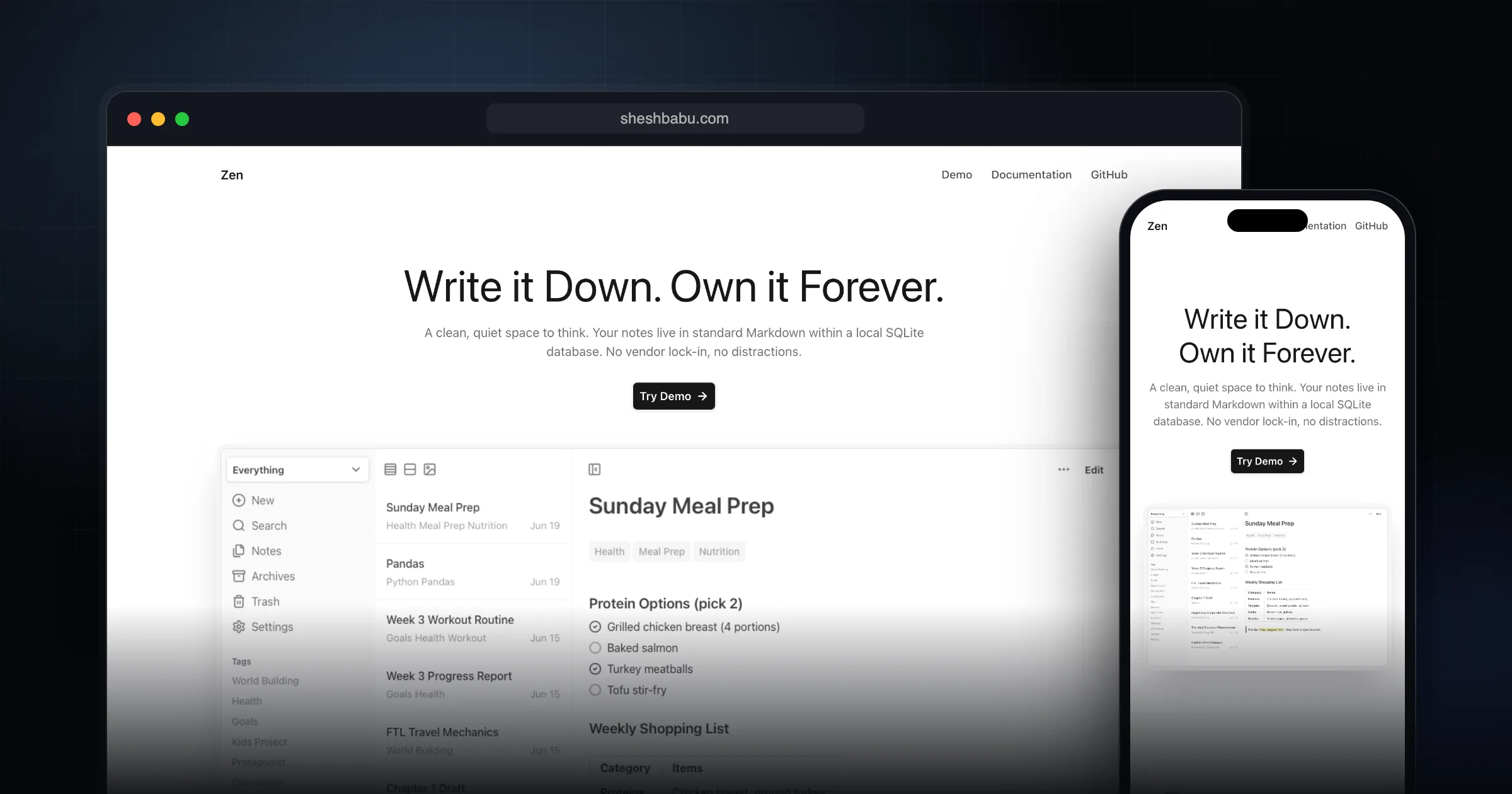
What it does well.
Single Go binary or Docker Compose, about 20 MB of memory
Markdown notes stored in a SQLite database
Tags and saved tag views (Focus Modes) instead of folders
Full-text search with BM25 ranking, live as you type
Version history with restore on every save
Templates with date and time placeholders
Images by drag and drop or paste, with a gallery view
Import and export as Markdown, JSON and images
Tag-scoped API tokens and an MCP server for AI tools
Dark mode, keyboard shortcuts, installable as a PWA
Why I recommend this.
Zen is an excellent choice if you care about focus, ownership of your data, and long-term reliability in a writing tool. Because it stores everything in a local SQLite database, you avoid cloud lock-in, subscription pressure, and the risk of losing access to your notes if a service shuts down. This local-first approach also tends to be faster and more predictable than web-based apps.
The distraction-free interface and focus modes make Zen particularly strong for deep work and long-form writing. By stripping away visual clutter and notifications, it helps you stay in the flow, which is crucial for drafting essays, documentation, or any serious writing project.
Zen’s full-text search is another major advantage. Fast, reliable search across all your notes means you can treat the app as an external brain: capture ideas freely and trust that you’ll be able to retrieve them instantly later.
Despite its minimalist design, Zen still feels like a power-user tool. The template system lets you standardize recurring note structures—meeting notes, daily logs, project briefs—so you can start writing immediately instead of rebuilding the same layout every time. Combined with robust keyboard shortcuts, this makes navigation and editing extremely efficient, reducing friction and mouse dependence.
Overall, Zen is recommended if you want a writing app that:
- Respects your attention with a clean, distraction-free interface and strong focus modes.
- Respects your data by keeping everything local in SQLite, avoiding vendor lock-in.
- Supports serious, long-term writing with fast full-text search and reliable performance.
- Offers power-user features like templates and keyboard shortcuts without sacrificing simplicity.
If your priorities are focus, speed, and data ownership rather than collaboration-heavy cloud features, Zen is a standout option.
Who Zen is for
I recommend Zen to developers and self-hosters who want a personal notes app on their own server, without accounts on someone else's cloud. It suits you if you already run a home server or a small VPS and want one more lightweight service on it.
To be clear, Zen is a web app you host, not a desktop app. You open it in a browser, or install it as a PWA on your phone.
What it actually does
Notes are written in Markdown with tables, code blocks, task lists and highlights, and a formatting toolbar for those who prefer buttons. Instead of folders you add tags, then save combinations of tags as Focus Modes, which act like custom views.
Search covers titles and content, ranks results with BM25 and updates as you type. It also finds archived and deleted notes. Each save keeps a snapshot of the previous version, so you can browse and restore old versions. Other features include pinned notes, archive and soft delete, internal links between notes with a side-panel preview, and list, card and gallery views.
For automation, you can create API tokens limited to specific tags, with read or read-and-write access. The same tokens power an MCP integration, so tools like Claude Code can search and read your notes. A canvas for arranging notes and images spatially and semantic search are marked as experimental.
Pricing and licence
Zen is free. The GitHub repository is licensed under AGPL-3.0, and I found no paid tier or hosted plan on the official site. You pay only for the server you run it on.
Self-hosting with Docker Compose
The documentation gives a short Compose file. It uses the image `ghcr.io/sheshbabu/zen/zen:latest`, maps port 8080, and mounts two volumes: one for `/data`, where the SQLite database lives, and one for `/images`. Run `docker compose up -d` and open port 8080 in your browser.
If you prefer no Docker, you can build from source with Go 1.23 or later and esbuild, then run the `./zen` binary. For backups, the docs show a script that uses SQLite's `.backup` command and checks integrity, and there is a separate Zen Backup project for automated backups.
Limitations and trade-offs
- It is a personal project. The README says the author may not review pull requests or answer issues.
- Notes live inside one SQLite file, not as separate .md files in a folder. You get Markdown back through export, but you can't edit notes with another editor directly.
- There are no native mobile apps. Mobile use is through the responsive web interface or the PWA.
- You are responsible for HTTPS, backups and keeping the container updated.
Zen vs Obsidian, Joplin and Memos
Obsidian stores notes locally as plain Markdown files and runs as a desktop and mobile app. Pick it if you want files on disk and a large plugin ecosystem, and don't need a server.
Joplin is open source, has desktop and mobile apps and end-to-end encryption, and syncs through services such as Joplin Cloud, Dropbox or OneDrive. It is the better choice if you want native apps on every device.
Memos is the closest self-hosted rival. It is MIT licensed, runs in Docker and is built around a timeline of short notes. I prefer Zen for longer notes, tags and version history.
Getting started checklist
- Try the live demo linked from the Zen site before installing.
- Create a folder with the Compose file from the docs and point the `/data` and `/images` volumes at real paths.
- Run `docker compose up -d` and open the app on port 8080.
- Put it behind a reverse proxy with HTTPS if you will reach it from outside your network.
- Set up a scheduled SQLite backup before you move important notes in.
- Learn Ctrl/Cmd + N for a new note and Ctrl/Cmd + K for search.
Comments
Share your thoughts and join the conversation